 Deskathon
Install and open Deskathon
- Open the Mac App Store, find Deskathon and click Get.
- When it has downloaded, click Open, or open Deskathon from your Applications folder.
- The welcome opens. Go through it as described below, or click Skip.
Counting starts as soon as Deskathon opens, even before you finish the welcome. Pointer distance, clicks and scroll need no permission.
Quitting stops counting. Deskathon counts only while it’s open. After you quit, nothing is counted until you open it again, and it doesn’t fill in the gap.
Only one copy of Deskathon runs at a time. If you open it again, the running copy comes forward.
Find Deskathon in the menu bar
Deskathon has no Dock icon unless you turn one on. It lives in the menu bar, near the clock. The item shows the Deskathon icon and today’s distance.
- Click the item to open the panel.
- Right-click it, or Control-click it, for a short menu with Open Deskathon, Pause, Settings… (⌘,), Deskathon Help (in versions after 1.0) and Quit Deskathon.
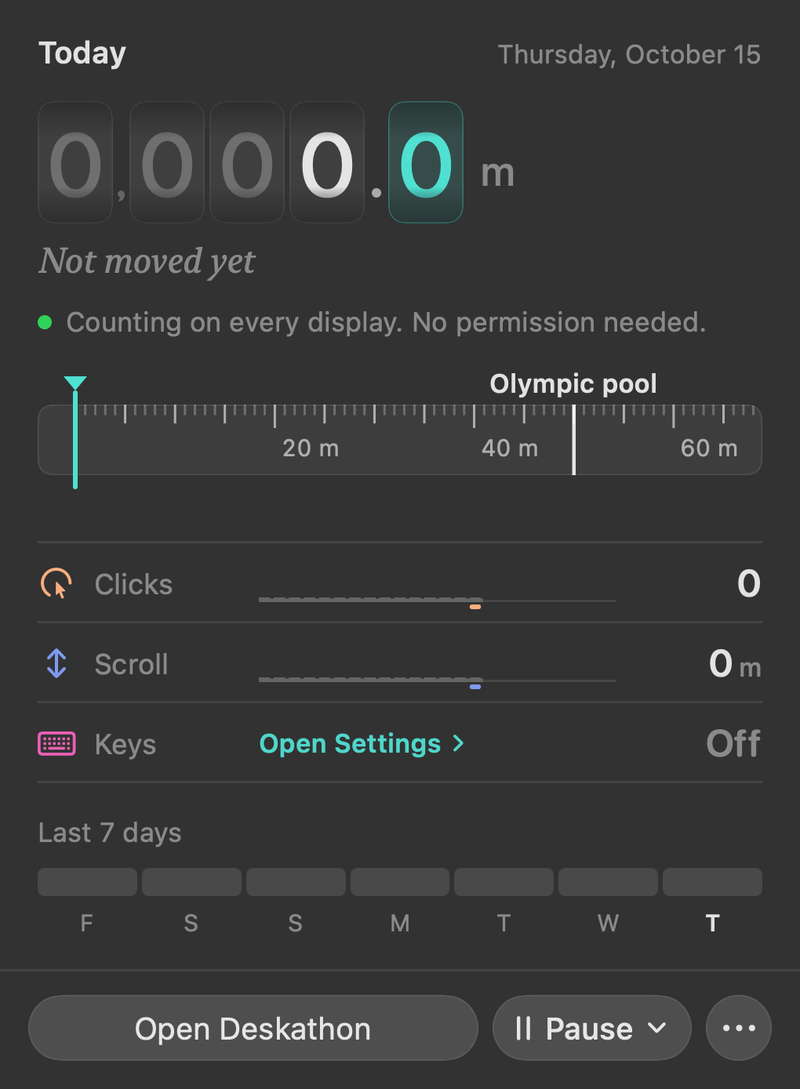
Until you have moved the pointer, the panel reads Not moved yet. It also says Counting on every display. No permission needed.
If you can’t see the icon
On a crowded menu bar, the notch or other items can hide Deskathon. If that happens, Deskathon shows an alert once, Can’t see the Deskathon icon? It tells you to hold ⌘ and drag icons in the menu bar to make room. The alert has an OK button and, unless Menu bar text is already None (icon only), a Show Icon Only button that hides the item’s text so it takes less room.
You can also turn on a Dock icon: open Settings › General and switch on Show in Dock.
Go through the welcome
The welcome shows how Deskathon counts distance, clicks and scroll, then asks for a few choices. It opens by itself on the first launch.
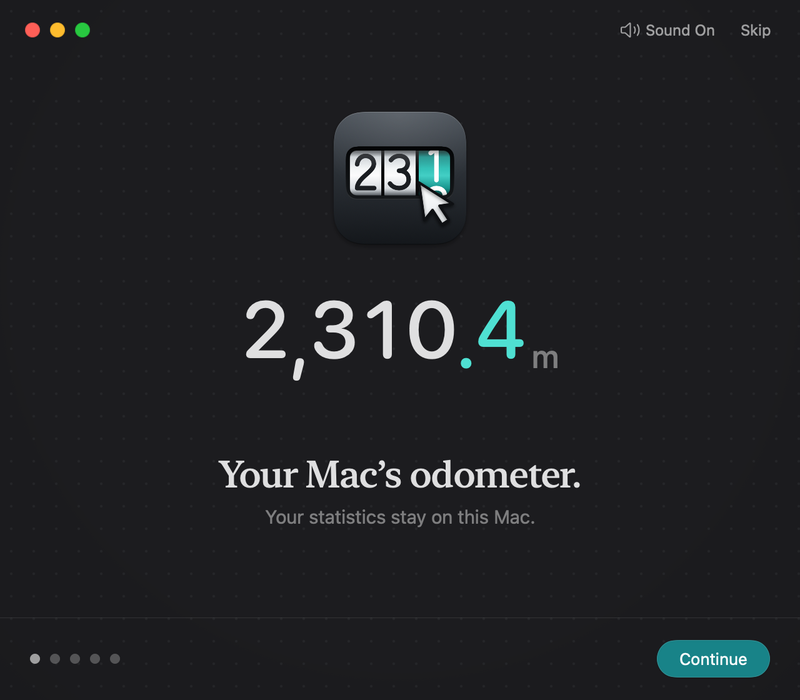
- Click Continue or press Return to go to the next page. Back returns to the previous one.
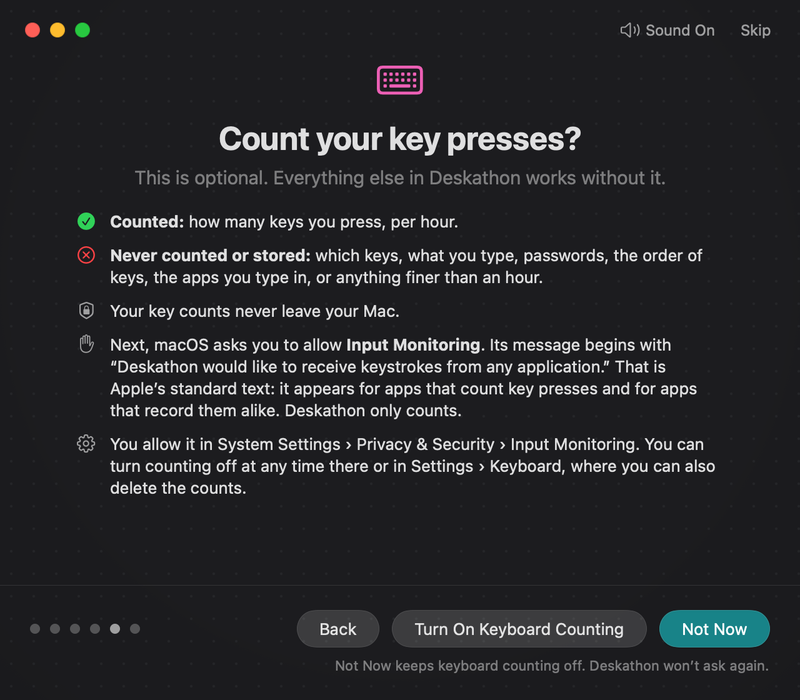
- On Count your key presses?, choose Turn On Keyboard Counting or Not Now. Not Now keeps keyboard counting off, and Deskathon won’t ask again.
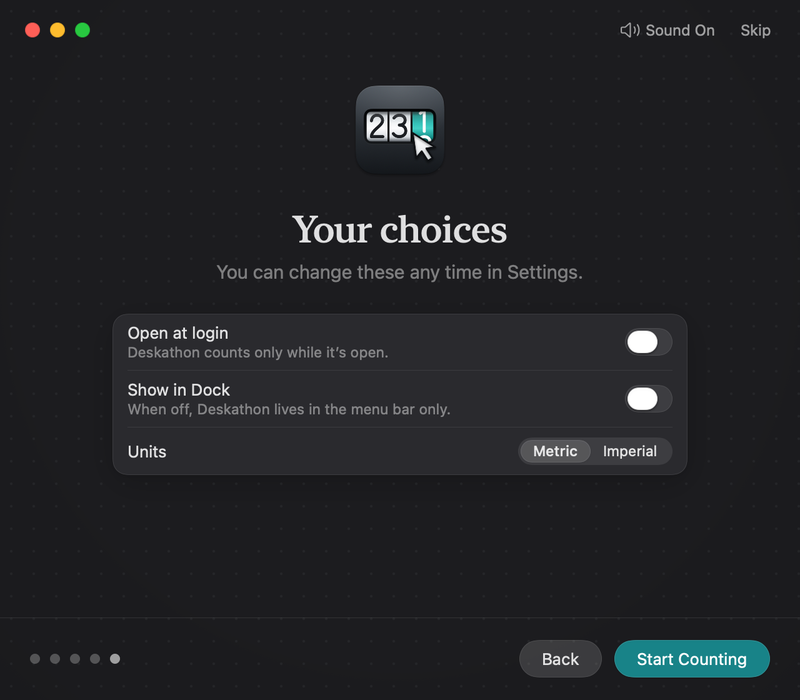
- On Your choices, set Open at login, Show in Dock and Units.
- Click Start Counting.
The pages, in order:
| Page | What it says |
|---|---|
| Your Mac’s odometer. | Your statistics stay on this Mac. |
| Every move adds up | Your pointer’s path becomes distance, on every display. |
| Clicks leave a heat map | See where you click most, never what is on your screen. |
| Scrolling, in pages | Every scroll adds up to distance and sheets of paper. |
| Key presses, only if you say so | Deskathon can count how many keys you press. Never which ones. |
| Count your key presses? | What is and isn’t counted, with Turn On Keyboard Counting and Not Now. |
| Your choices | Open at login, Show in Dock and Units. You can change these any time in Settings. |
At the top of the welcome, Sound On or Sound Off controls the sound for the welcome. The sound plays only after your first click or key press.
Your choices
| Option | What it does | At first |
|---|---|---|
| Open at login | Starts Deskathon with your Mac, so it keeps counting after a restart. | Off |
| Show in Dock | Adds a Dock icon. When off, Deskathon lives in the menu bar only. | Off |
| Units | Metric or Imperial, for every distance Deskathon shows. | Your Mac’s region |
Skip closes the welcome and keeps every option as it is. You can change all of them later in Settings › General. To see the welcome again, open Settings, choose About and click Show Again next to Welcome screens.
After the welcome
Nothing else opens by itself. Deskathon keeps counting in the background, and you can open the panel from the menu bar whenever you like.
The login hint
If Open at login is still off, the panel shows the login hint once, from your second launch on: Deskathon counts only while it’s open. Open it at login to keep counting after a restart. Click Open at Login in the note to turn it on. Nothing else in the note changes the setting.
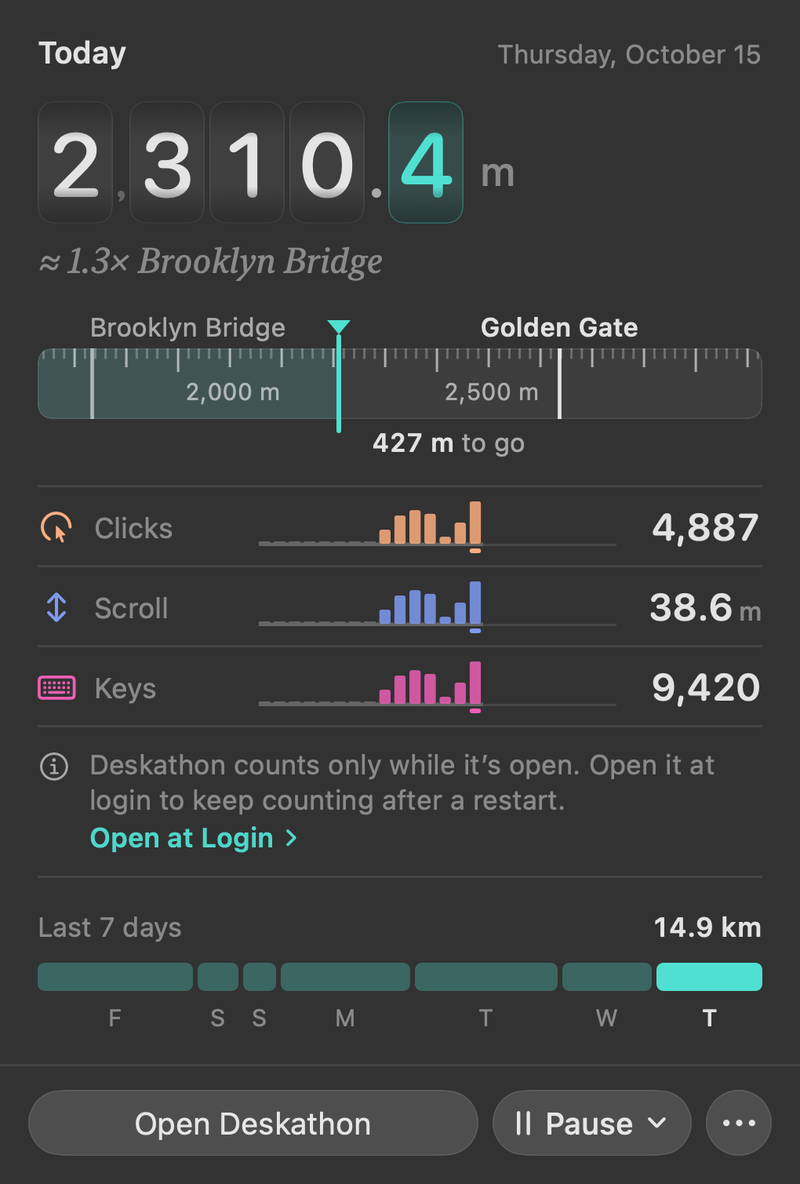
If macOS needs your approval first, Deskathon shows Open at login isn’t on yet. Choose Open System Settings and allow Deskathon in System Settings › General › Login Items.