 Deskathon
What the Heat Map shows
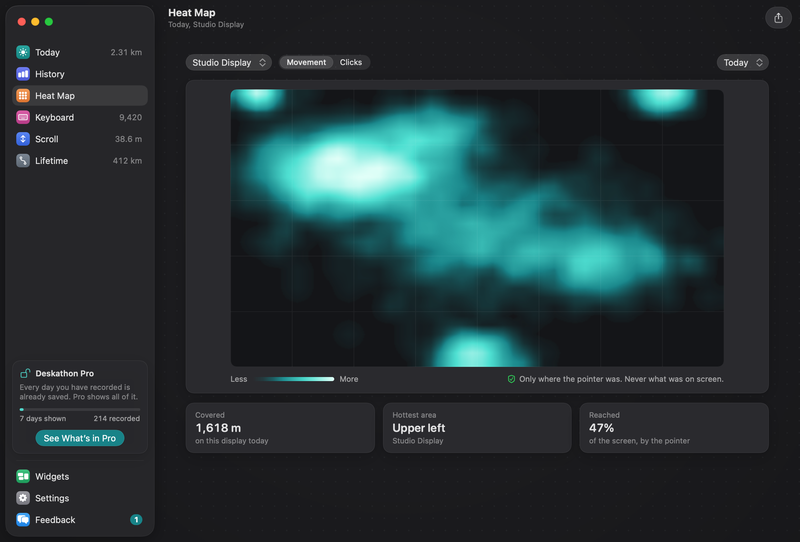
The Heat Map is a picture of one display. Brighter areas are where your pointer moved most, or where you clicked most. It answers a simple question: where on the screen does my day happen?
Deskathon divides each display into a grid of 48 by 30 cells and adds up your movement or clicks in each cell. The map smooths those cells into soft clouds. There is one map per display, for each day, and two layers:
- Movement shows where the pointer traveled.
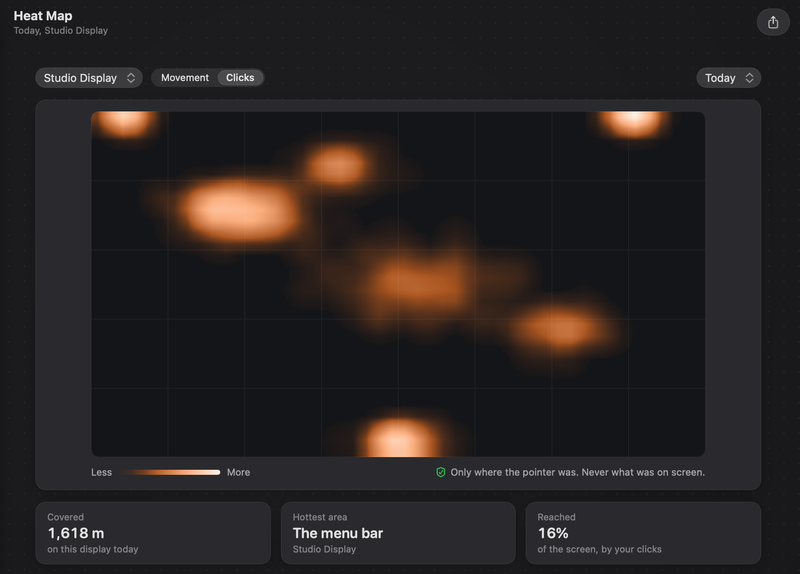
- Clicks shows where you clicked.
Today’s map is free, for every display and both layers. Other periods need Deskathon Pro.
Open the Heat Map
- Click the Deskathon item in the menu bar, then click Open Deskathon.
- Choose Heat Map in the sidebar.
While the main window is in front, you can also press ⌘3. The title at the top of the window shows the period and the display, for example “Today, Studio Display”.
Choose what to see
Three controls sit above the map.
Display
The pop-up on the left lists your connected displays first. Displays you used in the last 90 days but that aren’t connected now stay in the list, labeled Studio Display, not connected (with your display’s name). After 90 days without being seen, a display drops off the list. Its counts stay in your data.
Each map is drawn in the shape of its display, so a wide display gives a wide map.
Layer
Switch between Movement and Clicks. The two layers keep separate maps. The scale under the map runs from Less to More.
Period
The pop-up on the right sets which days the map covers.
| Choice | Covers | Needs |
|---|---|---|
| Today | Today only. | Free |
| Choose Day… | One day you pick, from the first day Deskathon counted to today. | Pro |
| Last 7 Days | The 7 days ending today, added together. | Pro |
| Last 30 Days | The 30 days ending today, added together. | Pro |
To look at a past day:
- Open the period pop-up and choose Choose Day….
- Pick a date, then click Done. Click Cancel to leave the period as it was.
If you don’t have Pro, choosing a Pro period opens the Pro sheet and the map stays on today. A locked period shows a card called Heat maps over time with a See Pro button. Deskathon Pro is a one-time in-app purchase. Read more about Pro.
Read the cards
Under the map, up to three cards sum it up.
- Covered is how far the pointer moved on this display today, with the note “on this display today”. This card appears only when the period is Today.
- Hottest area names the part of the display with the brightest spot, such as Upper left or The menu bar. The display’s name sits under it.
- Reached is the share of the display’s cells that have any count at all. It reads “of the screen, by the pointer” on the Movement layer and “of the screen, by your clicks” on the Clicks layer.
Areas are the nine parts of a three-by-three split of the display, plus the menu bar (the top row of cells) and the Dock (the row or column of cells along the Dock’s edge). If your Dock is hidden or on another display, no cell counts as the Dock.
With VoiceOver
The map has a spoken summary, for example “Busiest area: upper left of Studio Display. Then the center and the right.” On the Clicks layer it starts with “Most clicks:”. VoiceOver also reads the top three areas. If nothing is counted yet, it says so and the map fills in as you move the pointer.
What the map never shows
The map is a neutral rectangle. It never contains a screenshot, a window, a name or any text from your screen. Deskathon stores only a count for each cell, and a cell is never smaller than one forty-eighth of the display’s width by one thirtieth of its height. The note under the map says it plainly: Only where the pointer was. Never what was on screen.
Heat maps are saved on your Mac with your other counts. To remove them, use Erase All Data… in Settings › Privacy & Data.