 Deskathon
Your statistics stay on this Mac
Deskathon stores your statistics in its own folder on this Mac and never sends them anywhere. Other than the App Store, which Deskathon asks for the price when you open the Pro sheet or Settings › Pro, and when you buy or restore Pro, the only network features are the ones you turn on yourself, described under Sharing with VPO Labs.
Deskathon keeps:
- Counts for each hour and each display: pointer distance, left, right and other clicks, scroll distance and scroll sessions.
- A heat map grid for each display and day: how often the pointer was in each part of the screen, and the same for clicks.
- If you turn it on, how many keys you pressed each hour.
- The names of the displays it has seen, and your settings.
It never records what was on your screen, which keys you press or what you type. The heat map shows only where the pointer was.
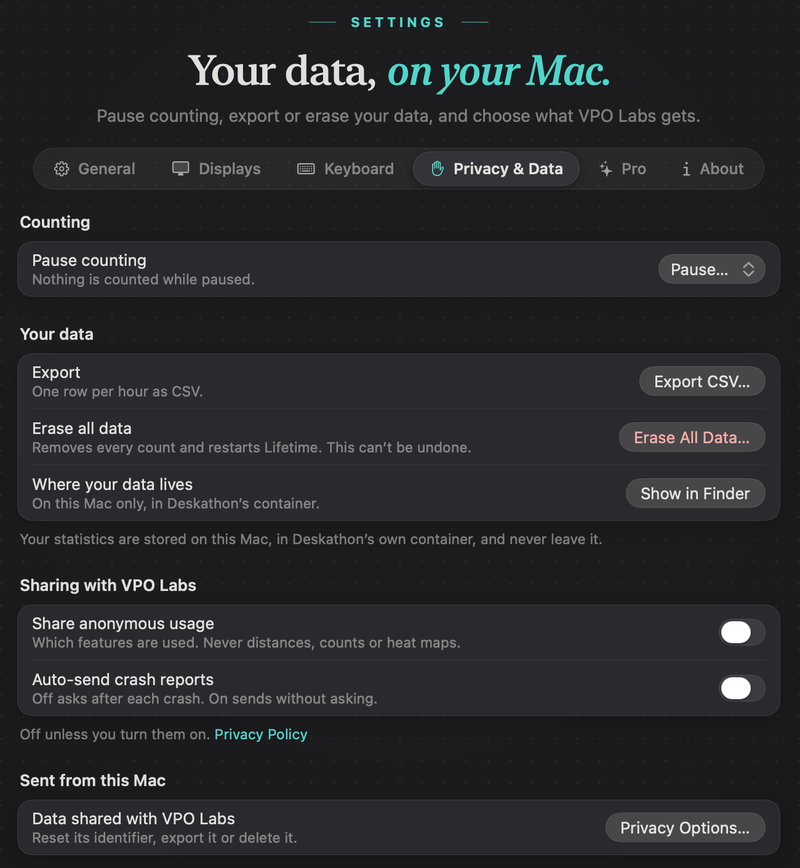
To see where the data lives, open Settings › Privacy & Data and click Show in Finder.
Deskathon also keeps daily backups. If it finds a damaged data file at launch, it restores yesterday’s backup and tells you with Your data was repaired. Counts from up to one day may be missing. It keeps the three newest backups.
Pause counting
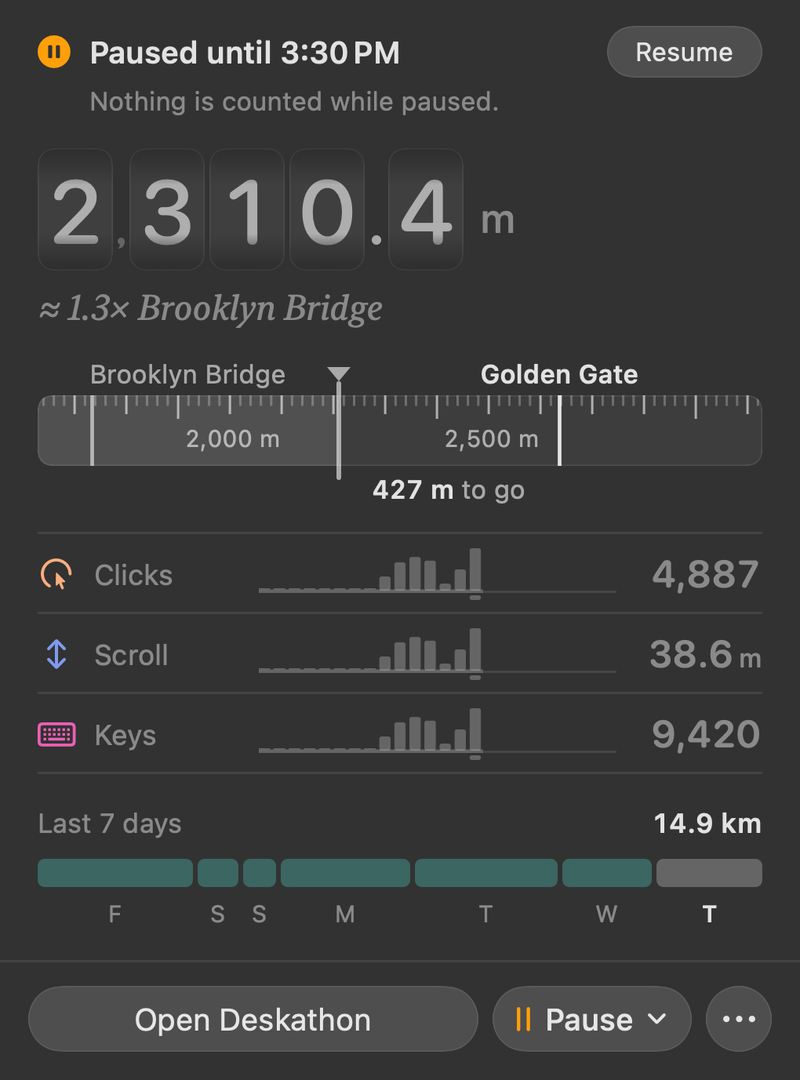
Pause stops all counting. Nothing is counted while paused.
- Click Pause in the panel, or right-click the menu bar item and choose Pause. You can also use Settings › Privacy & Data › Pause….
- Choose how long:
| Choice | Pause ends |
|---|---|
| Pause for 1 Hour | After 1 hour. The panel shows the end time. Changing the Mac’s clock doesn’t change the length. |
| Pause Until Tomorrow | At the next midnight where you are. If you change time zone, it ends at midnight in the new one. |
| Pause Until I Resume | When you choose Resume. |
While paused, the panel shows a banner such as Paused until 3:30 PM with a Resume button and the line Nothing is counted while paused. The menu bar icon looks dimmed and widgets show Paused. A pause survives quitting and reopening Deskathon. To end it, choose Resume in the panel, the right-click menu or Settings, or choose Counting › Resume Counting in the menu bar at the top of the screen.
Export your data as CSV
Export is free.
- Choose Settings › Privacy & Data.
- Click Export CSV….
- In the save panel, choose a place. The suggested name is Deskathon-YYYY-MM-DD.csv, with today’s date.
If the file can’t be written, Deskathon says Couldn’t export your data and changes nothing. Choose another location and try again.
The file is UTF-8 with one header row and one row per hour that has any counts, for each display. Distances use a dot as the decimal separator, with six decimals, whatever your region. The columns are:
| Column | What it holds |
|---|---|
| date, hour | The local day and the hour of the day. |
| utc_offset | The offset from UTC for that hour. When clocks go back, the repeated hour appears twice with different offsets. |
| display, display_key | The display’s name and its stable key. |
| distance_m | Pointer distance in meters. |
| clicks_left, clicks_right, clicks_other | Click counts. |
| scroll_m, scroll_sessions | Scroll distance in meters and the number of scroll sessions. |
| key_presses | Key presses in that hour. Empty on every row unless keyboard counting was on. Key counts are on their own rows, with the display and the other columns empty, so adding up a column never counts anything twice. |
Heat map grids aren’t part of the export.
Erase all data
- Choose Settings › Privacy & Data.
- Click Erase All Data….
- Read Erase all data? and click Erase All Data, or Cancel.
Erasing removes every count and every heat map, deletes Deskathon’s backups and restarts Lifetime from zero. Counting continues from zero, and the pane says All data erased. Counting continues from zero. If it can’t remove the data file, you see Couldn’t erase your data and nothing changes.
Can’t be undone. Erase All Data removes everything it lists. Export a CSV first if you want a copy.
To remove only your key counts and keep everything else, use Delete Keyboard Counts… in Settings › Keyboard. See Keyboard counting.
Sharing with VPO Labs
Both switches under Sharing with VPO Labs are off unless you turn them on. With crash reports off, Deskathon asks after each crash. In a version that can’t send reports, the section reads Not available in this version and has no switches.
| Setting | What it does |
|---|---|
| Share anonymous usage | Sends which features are used. Never distances, counts or heat maps. Turning it on first asks Share anonymous usage? You can choose Share or Don’t Share. |
| Auto-send crash reports | Off asks after each crash. On sends without asking. |
| Send Feedback… | Opens the Feedback page. |
| Privacy Options… | Under Sent from this Mac. Opens a window where you can reset the random identifier, export what was shared or delete it. |
If you share usage, Deskathon sends which features you use, plus app and macOS versions, under a random ID that isn’t linked to you and that you can reset. It never sends distances, counts, heat maps or display names. Today that means events for finishing the welcome, saving a share card, unlocking Pro, adding a widget, exporting a CSV and changing a display size, and for turning keyboard counting on or off.
The Privacy Policy has the full details.
The Feedback page
Choose Feedback in the sidebar, or Send Feedback… in Privacy & Data, to write to us.
- Pick Feedback, Problem or Idea and write your message.
- Attach a file with Attach File… or by dropping it in, or use Attach Window Snapshot.
- Include diagnostics is off at first. See exactly what’s sent shows you what would go.
- Add an email address under Email for answers if you want a reply. It is optional.
Replies arrive in the app, under Conversations. The sidebar shows a badge with the number of new replies. Deskathon sends no system notifications.