 Deskathon
What keyboard counting does
Keyboard counting is optional and off by default. When you turn it on, Deskathon counts how many keys you press in each hour. Everything else in Deskathon works without it.
| Counted | How many keys you press, per hour. |
|---|---|
| Never counted or stored | Which keys, what you type, passwords, the order of keys, the apps you type in, or anything finer than an hour. |
Your key counts never leave your Mac. A few details that help you read the numbers:
- Deskathon counts key presses only. Modifier keys, such as ⇧ or ⌘ on their own, and media and system keys aren’t counted.
- Holding a key down counts once, not once for each repeat.
- Keys typed in password fields aren’t counted. macOS hides them, and that’s on purpose.
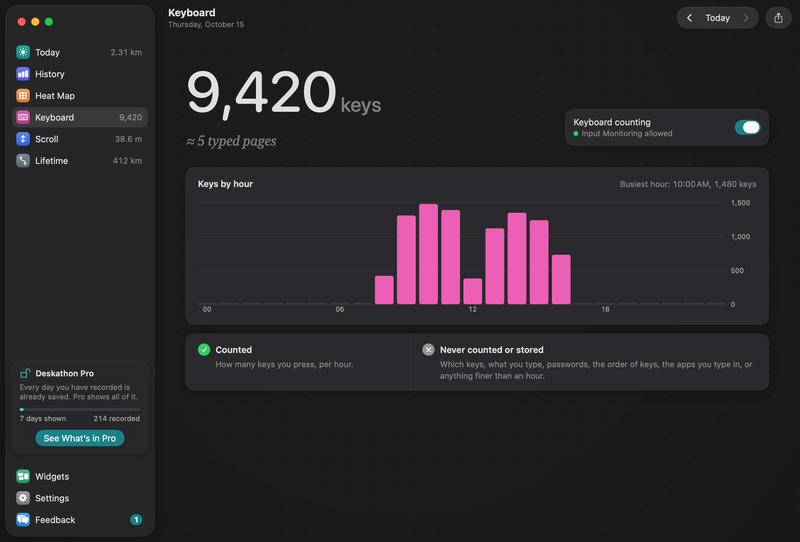
Deskathon also shows an estimate called typed pages. One page is 1,800 key presses, so 9,420 keys is about 5 typed pages.
Turn keyboard counting on
- Open Deskathon, choose Settings in the sidebar and choose the Keyboard pane.
- Turn on Count key presses.
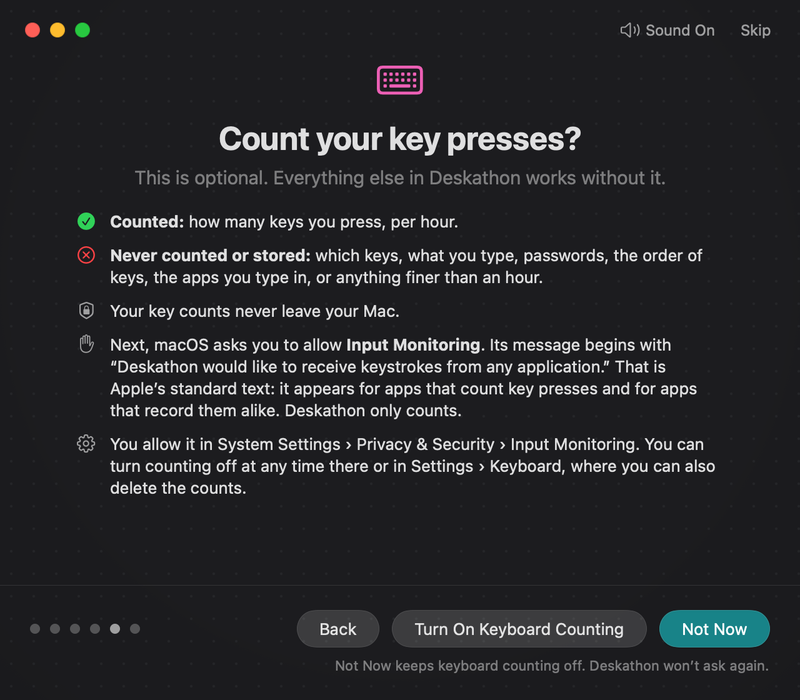
- Read the Count your key presses? page, then choose Turn On Keyboard Counting. Choose Not Now to keep counting off. Deskathon won’t ask again on its own.
- macOS asks you to allow Input Monitoring. Its message begins “Deskathon would like to receive keystrokes from any application.” That is Apple’s standard text. It appears for apps that count key presses and for apps that record them alike. Deskathon only counts.
- Allow Deskathon in System Settings › Privacy & Security › Input Monitoring. Counting starts as soon as you do.
macOS asks for permission only after you agree on the Deskathon page. If you just allowed it and the status doesn’t change, quit and reopen Deskathon.
Other ways to start
- The welcome has a page called Key presses, only if you say so, followed by the same consent page.
- Turn On Keyboard Counting… on the Keyboard tab, Turn On… on the Today tab and Open Settings on the Keys row of the panel all open Settings › Keyboard. You then turn on the switch there.
- If macOS still has your permission from an earlier time, Deskathon skips the consent page.
What the status means
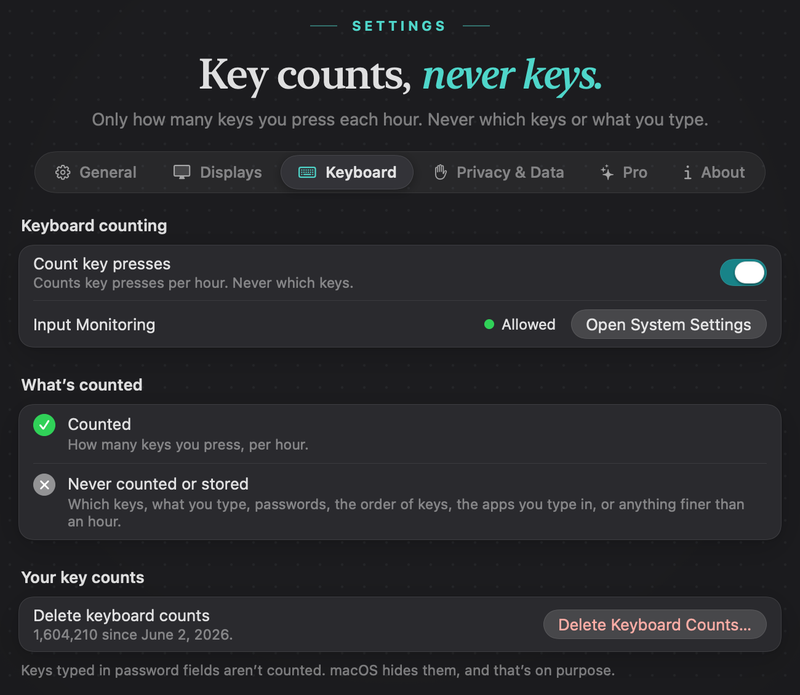
The Keyboard tab shows these states, and the Keys row in the panel follows them. The Input Monitoring row in Settings › Keyboard shows the same state in shorter words: Not requested, Waiting for macOS, Allowed, Secure Input is on or Off.
| You see | What it means | What to do |
|---|---|---|
| Keyboard counting is off | You haven’t turned it on, or you turned it off. | Choose Turn On Keyboard Counting… to start. |
| Waiting for Input Monitoring | You agreed, and macOS is waiting for you. Deskathon checks every 2 seconds for up to 2 minutes. | Allow Deskathon in System Settings. Click Open System Settings to go there, or Cancel to open Settings › Keyboard instead. |
| Input Monitoring allowed | Counting is on. | Nothing. |
| Secure Input is on, keys aren’t counted right now | macOS hides keys while you type in a password field, and some apps keep Secure Input on. | Nothing. Counting resumes on its own. |
| Input Monitoring is off | You didn’t allow it. Everything else keeps working. | Choose Open System Settings and allow Deskathon. Or choose Turn Off Keyboard Counting, which opens Settings › Keyboard, where you turn off Count key presses. |
| Keyboard counting is paused: Input Monitoring is off | You allowed it before, and it was turned off in macOS since. Your earlier counts are kept. | Choose Open System Settings and allow Deskathon again. |
In the last two cases, Open System Settings asks macOS again first, so Deskathon appears in the Input Monitoring list, and then opens that list. If counting doesn’t resume, quit and reopen Deskathon. While counting is on, Deskathon checks the permission about once a minute, so a change in System Settings shows within a minute.
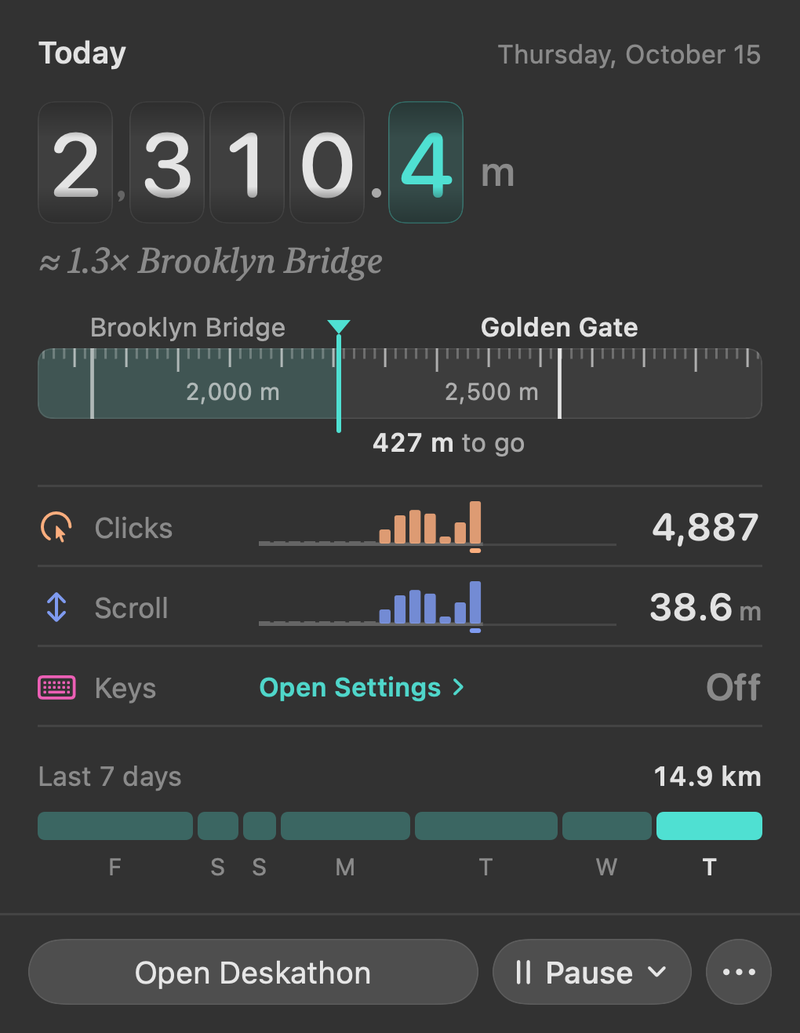
The Keys row in the panel shows Off with an Open Settings link while counting is off. If you didn’t allow Input Monitoring, the link reads Open System Settings. When macOS took the permission away, the row shows Paused.
The Keyboard tab
Choose Keyboard in the sidebar. While counting is on, the tab shows:
- The number of keys pressed on the day shown, with an estimate in typed pages. Point at the estimate to see how it is worked out.
- A Keyboard counting card with Input Monitoring allowed and the switch.
- A Keys by hour chart, with the busiest hour noted above it. Before the first keys arrive, it says counting started and the first keys appear within a few seconds.
- The Counted and Never counted or stored reminder.
Use the arrows at the top of the window to go back to earlier days. They show only while counts show.
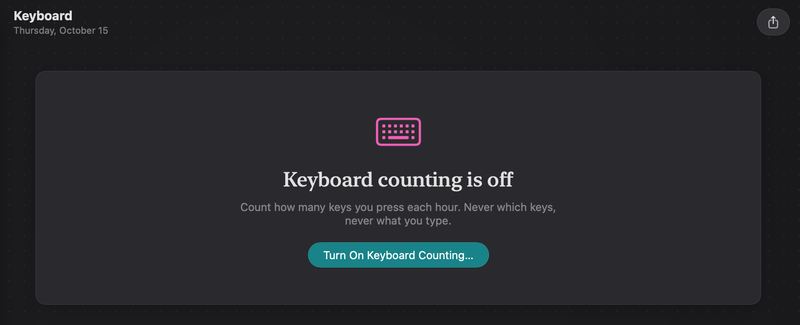
With counting off, the tab shows a short explanation and Turn On Keyboard Counting….
Where else keys appear
- The panel and the Today tab have a Keys row or box.
- In Settings › General, Menu bar text offers Keys today, but only while counting is on.
- History has a Keys metric and a Most keys record.
- Lifetime has a Keys card.
- The share card has a Keys checkbox while counting is on.
- The Medium and Large widgets show key presses next to clicks.
Turn keyboard counting off
- Open Settings › Keyboard, or the Keyboard tab.
- Turn off Count key presses (on the tab, the Keyboard counting switch).
- If you have saved counts, Deskathon asks Keep your keyboard counts or delete them? Choose Keep Counts to keep them, or Delete Counts to remove them.
Counting stops right away. Your pointer, click and scroll data stay either way.
Deskathon stays in the macOS Input Monitoring list until you remove it. Settings › Keyboard shows To remove Deskathon from the Input Monitoring list as well, open System Settings. with an Open System Settings button. Select Deskathon in System Settings › Privacy & Security › Input Monitoring and remove it there.
Delete your key counts at any time
- Open Settings › Keyboard. Under Your key counts, the Delete keyboard counts row shows how many key presses are saved and since when.
- Click Delete Keyboard Counts…, then confirm with Delete Keyboard Counts.
Can’t be undone. Deleting removes all saved key counts. Your pointer, click and scroll data stay. The button is dimmed when there are no counts.
Erase All Data… in Settings › Privacy & Data also removes key counts, along with everything else.